By My IPTV Sub Support Team (Setup & streaming technicians). Published .
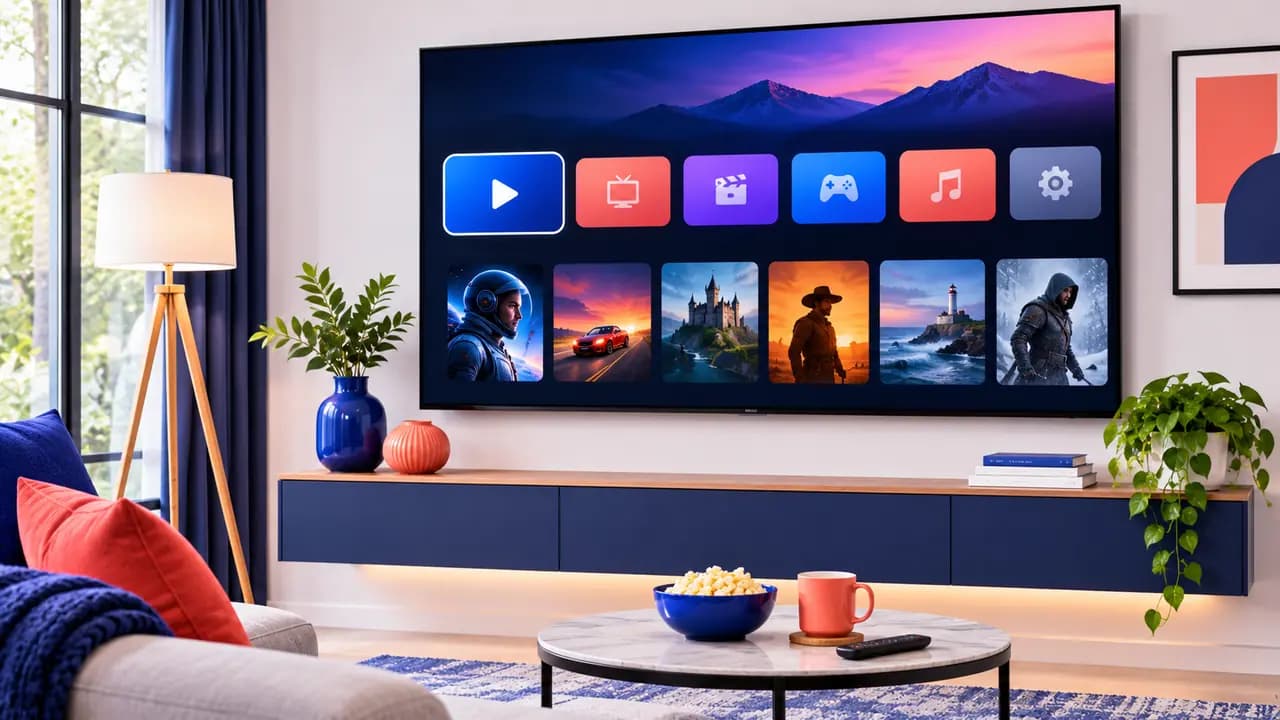
If you own a Samsung or LG Smart TV, you may not need a Firestick or any other box to watch IPTV. Both brands can run IPTV player apps directly, which means one less remote, one less power cable and nothing extra to buy. This walkthrough explains which TVs work, which apps to choose, how activation works and how to fix the problems people run into most.
Which Samsung and LG TVs work
Samsung Smart TVs run an operating system called Tizen. Models from 2017 onward support the popular IPTV players in the Samsung app store (Smart Hub). Older Samsung sets often have a much smaller app choice, and a Firestick is usually the easier route.
LG Smart TVs run webOS. Sets with webOS 4.0 or newer, which covers most LG TVs sold since 2018, support the common IPTV players in the LG Content Store.
To check your model, look at the sticker on the back of the TV or open Settings → Support → About This TV (Samsung) or Settings → General → About This TV (LG).
What about other brands? Many Sony, TCL, Hisense and Philips TVs run Google TV or Android TV. Those follow our Android setup guide, which gives you an even wider choice of apps. Roku TVs don't support IPTV player apps well; a Firestick is the simplest fix there.
How IPTV apps on Smart TVs are different
On a Firestick or an Android box, you normally sign in with a username, password and server URL. Many Smart TV players work differently. When you open them for the first time, they show a MAC address and a device key. You then link your IPTV playlist to that MAC address, either on the app's website or by sending the details to your provider.
It sounds technical, but it only takes a minute, and it has one big advantage: you never have to type a long URL with the TV remote.
Choosing an app
The most common players on Samsung and LG are:
- IBO Player: available on both brands, with a clean layout and a good TV guide. Uses MAC activation.
- Bob Player: similar activation, simple and fast.
- Smarters Player Lite: on supported models, signs in directly with your Xtream Codes login.
Many Smart TV players offer a free period and then ask for a small one-time activation fee per TV. That fee goes to the app developer, not to your IPTV provider. We list this clearly because it surprises people; it is normal and usually only a few dollars.
For a wider look at every device, see our guide to the best IPTV player apps in 2026.
Setting up IPTV on a Samsung Smart TV
- Press Home on the remote and open Apps.
- Select the search icon and type the name of the player.
- Select the app and choose Install. When it finishes, select Open.
- On the first screen, note the MAC address and device key. A photo with your phone is the easiest way.
- Send that photo to support on WhatsApp, or open the player's website on your phone, enter the MAC and key, and paste the M3U link from your welcome email.
- Close the app completely (hold the Back button) and open it again. Your channels, movies and series load.
Setting up IPTV on an LG Smart TV
- Press Home and open the LG Content Store (sometimes simply called Apps).
- Search for the player and select Install, then Launch.
- Note the MAC address and device key on the first screen.
- Send them to support, or activate on the app's website with your M3U link.
- Restart the app. The playlist appears in a few seconds.
Turning on the TV guide
The EPG (electronic program guide) shows what is on now and next. In most TV players you'll find it under Settings → EPG or Update EPG. Select it, wait a minute, and the guide fills in. If some channels still show "No information", that channel may not carry guide data; most US channels do. Our EPG guide has more detail.
Getting the best picture on a Smart TV
Smart TVs are great screens, but their built-in Wi-Fi chips are often weaker than a modern streaming stick. A few tips make a big difference:
- Use an Ethernet cable if the router is anywhere near the TV. It is the single biggest improvement you can make, especially for 4K.
- Use 5 GHz Wi-Fi if you can't use a cable. It's faster and less crowded than 2.4 GHz.
- Turn off motion smoothing (Auto Motion Plus on Samsung, TruMotion on LG) for sports if the picture looks unnatural.
- Check your speed on the TV itself. About 10 Mbps is comfortable for Full HD and 25 Mbps for 4K; see what internet speed you need for 4K IPTV.
Common problems and fixes
The app isn't in the store
Some apps are only listed in certain regions or on certain model years. Try another of the players above, or ask support which app currently works on your exact model.
"Playlist not found" or "No playlist"
The playlist hasn't been linked to your MAC address yet, or it was linked to a slightly different MAC. Double-check every character and send the photo to support so we can confirm.
The app worked, then stopped after a few days
This is usually the end of the app's free period. Check the player's website for the activation fee, or switch to another player.
Channels buffer
Move to Ethernet or 5 GHz Wi-Fi, restart the TV (unplug it for 30 seconds, which clears memory better than the power button), and try again. The ten fixes in our IPTV buffering guide apply to Smart TVs too.
The picture is fine on the TV in the living room but not in the bedroom
That's almost always Wi-Fi coverage. A mesh Wi-Fi system or a simple powerline adapter usually solves it.
Favorites and parental controls
Once your channels load, take two minutes to make the app your own. In most Smart TV players you can highlight a channel and press the OK or menu button to add it to Favorites. A favorites list of your top 15 channels makes daily viewing much faster than scrolling through every category.
If you have children, look for parental controls in the app settings. Most players let you lock adult or late-night categories behind a PIN, and some let you hide categories completely.
Smart TV or Firestick?
Running IPTV directly on the TV is tidy and free of extra hardware. A Firestick 4K, on the other hand, gives you faster menus, more app choices (including TiviMate) and easier updates. If your Smart TV is more than five years old or the menus feel slow, a Firestick is often a worthwhile upgrade. Our Firestick setup guide takes about ten minutes.
Ready to watch?
Every My IPTV Sub plan works on Samsung and LG Smart TVs, and our team can activate the app for you if you send a photo of the MAC address. Find the short version of these steps in our Smart TV setup guide, or subscribe now to get your login.