By My IPTV Sub Support Team (Setup & streaming technicians). Published .
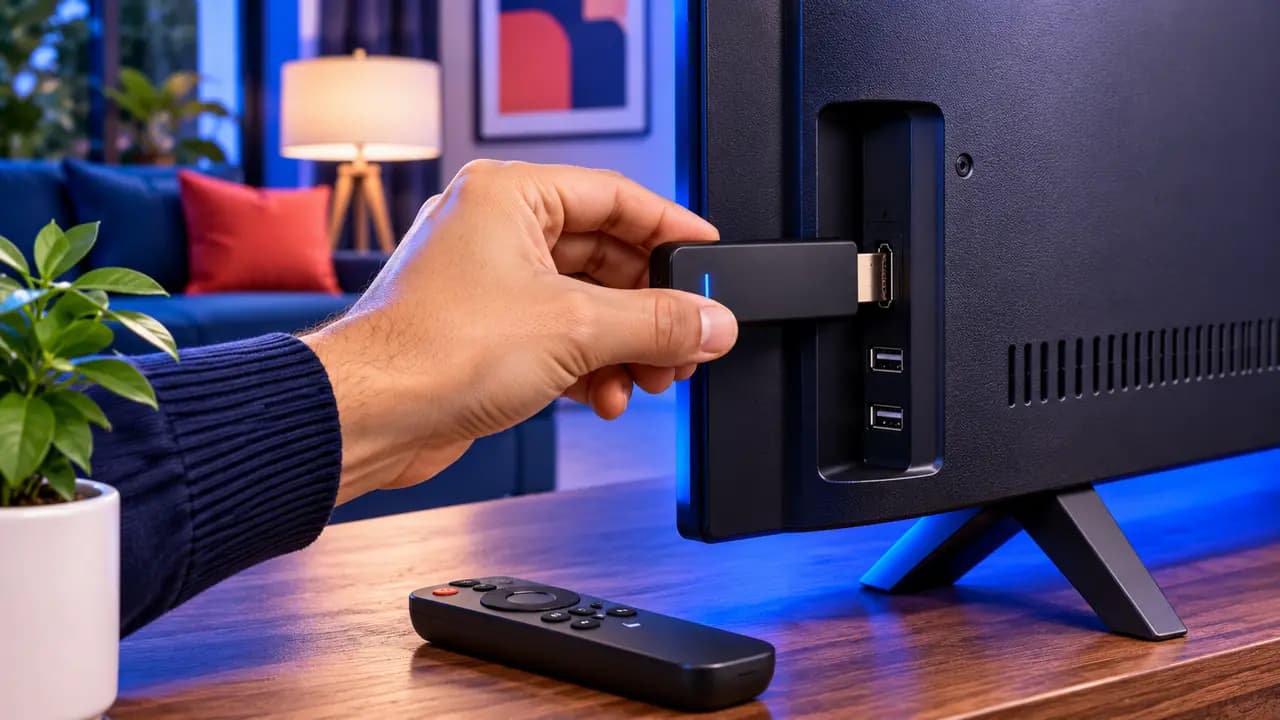
The Amazon Firestick is the most popular way to watch IPTV in the United States, and for good reason. It costs less than a month of cable, plugs into any TV with an HDMI port, and runs every major IPTV player app. In this guide you will install IPTV on a Firestick from scratch, and learn how to fix the errors people hit most often along the way.
The whole process takes about ten minutes. You don't need a computer, and you won't change anything that can harm your device.
Before you start
Make sure you have:
- A Firestick or Fire TV device connected to your TV and your Wi-Fi. This guide works on the Fire TV Stick Lite, Fire TV Stick (3rd gen), Fire TV Stick 4K, 4K Max, Fire TV Cube and Fire TV smart TVs.
- Your IPTV login: a username, a password and a server URL. With My IPTV Sub these arrive by email after payment. If you don't have one yet, see the IPTV USA plans.
- The Fire TV remote, and a little patience while apps download.
If your Firestick has been sitting in a drawer, go to Settings → My Fire TV → About → Check for Updates first. An up-to-date system avoids most install problems.
Step 1: Turn on Developer Options
Most IPTV player apps are installed with a small helper app called Downloader. To allow that, you first need to unlock a hidden menu.
- Open Settings (the gear icon on the right of the home screen).
- Select My Fire TV, then About.
- Highlight the first line, your device name (for example "Fire TV Stick 4K"), and press the center button seven times.
- A message says "No need, you are already a developer" or "You are now a developer".
- Press Back. Developer Options now appears in the My Fire TV menu.
On older software versions Developer Options is already visible, so you can skip this step.
Step 2: Install Downloader
Downloader is a free app by AFTVnews, available in the official Amazon Appstore. It does one thing: download a file from a web address you type.
- From the home screen, select Find, then Search.
- Type Downloader and choose the orange app with the arrow icon.
- Select Get or Download and wait for it to install.
Step 3: Allow Downloader to install apps
- Go back to Settings → My Fire TV → Developer Options.
- Select Install unknown apps.
- Find Downloader in the list and switch it to ON.
This setting only lets Downloader install the files you choose. You can turn it off again once your player is installed.
Step 4: Choose and install a player app
IPTV is not a channel you open from the Fire TV menu. You watch it in a player app. The three we recommend most on Firestick are:
- IPTV Smarters Pro: free, simple and easy to sign in. The best choice for most first-time users.
- TiviMate: the best TV-guide layout, with favorites and recording. The premium version is a paid upgrade.
- IBO Player: a clean interface that activates with your device's MAC address.
Our comparison of the best IPTV player apps goes into more detail.
To install your chosen player:
- Open Downloader. Allow access to files if asked.
- In the URL box, type the download code or link that our support team sends you for the player you picked, and select Go.
- When the download finishes, select Install, then Done.
- Downloader offers to delete the installer file. Select Delete twice to free up space.
Step 5: Sign in with your login
- Open the player from Your Apps & Channels.
- Choose Login with Xtream Codes API (in some apps: Add playlist → Xtream Codes).
- Enter any name for the profile, then type the username, password and server URL exactly as they appear in your welcome email.
- Select Add user or Login.
Typing on a Fire TV keyboard is slow. If your phone has the Fire TV app, its keyboard is much faster.
Step 6: Wait for the first load
The first time you sign in, the app downloads the channel list, the movie and series library and the TV guide. This usually takes one to three minutes. Don't press anything while the progress bar runs.
When it finishes, open Live TV, choose a category and pick a channel. That's it: you are watching IPTV on your Firestick.
Step 7: Make it easy to open
Hold the Home button, choose Apps, highlight your player, press the menu button (three lines) and select Move to front. Now the app sits on your home screen.
Fixing the most common problems
"Invalid login" or "Authorization failed"
Nine times out of ten this is a typing mistake. Check for an extra space at the end of the username, a capital letter in the password, or a missing "http://" in the server URL. Re-type the details slowly. If it still fails, message support: we can confirm your login is active.
The app doesn't appear after installing
Look in Settings → Applications → Manage Installed Applications. If it is there, open it from that menu and then move it to the front. If not, repeat the download in Downloader.
"Parse error" when installing
The download was interrupted or the link was mistyped. Delete the file in Downloader and download again.
Channels buffer or freeze
The most common cause is weak Wi-Fi. Move the router closer, switch your Fire TV to the 5 GHz network, or add an Amazon Ethernet adapter. Clearing the app's cache (Settings → Applications → Manage Installed Applications → your player → Clear cache) also helps. Our full guide to fixing IPTV buffering has ten more tips.
The TV guide is empty
Open the app's settings and refresh or update the EPG. Some apps only load the guide after the first restart. See how to use the EPG TV guide for details on each app.
Which Firestick should you buy for IPTV?
If you are buying a new one, choose the Fire TV Stick 4K or 4K Max. They have faster processors and more memory than the Lite model, handle 4K channels and keep the menus smooth even with a large channel list. The Lite is fine for HD on a smaller bedroom TV.
Firestick models at a glance
| Model | Max quality | Best for |
|---|---|---|
| Fire TV Stick Lite | Full HD | Small bedroom TVs |
| Fire TV Stick (3rd gen) | Full HD | Everyday HD viewing |
| Fire TV Stick 4K | 4K HDR | Most living rooms |
| Fire TV Stick 4K Max | 4K HDR, Wi-Fi 6E | Large TVs, busy households |
| Fire TV Cube | 4K HDR, built-in Ethernet | Heavy users who want a wired connection |
If you plan to watch 4K channels or sports on a big screen, the 4K Max or the Cube gives the smoothest experience. Read what internet speed you need for 4K IPTV before upgrading.
Keeping things running smoothly
- Restart the Firestick once a week by unplugging it for ten seconds.
- Clear the player's cache every few weeks.
- Keep about 1 GB of storage free.
- Update the player app when it asks you to.
Need a hand?
If you get stuck at any step, our technicians can walk you through it on WhatsApp in a few minutes. You'll find every contact option on the contact page, and the short version of these steps in our Firestick setup guide. Don't have a login yet? Get started with a My IPTV Sub plan and it arrives by email right after payment.